Article note: #schade .oO(Die Gründe kenne ich iwie von linux4user.de noch ... :-D)

Nach rund 22 Jahren haben die Betreiber der Website Pro-Linux beschlossen, den Betrieb einzustellen. Die bestehenden Seiten gehen jedoch nicht offline, sondern sollen als Wissensarchiv bestehen bleiben.

Kommentare sind dann nicht mehr möglich. Das verkündete Pro-Linux-Gründer Mirko Lindner in einem Artikel zum Abschied. In ihm bedankt er sich zudem “für die schöne Zeit und unbezahlbare Erinnerungen”. Die sogenannte “DBApp” soll jedoch noch weitergeführt werden. Sie ist auf der Website unter dem Menüpunkt “Programme” erreichbar und informiert über neue Programmversionen.

In seinem Beitrag wirft Mirko Lindner auch einen kleinen Blick zurück. So sollten die Seiten damals das noch spärlich gesäte Wissen über Linux sammeln und als Treffpunkt für die Community dienen. Nach eigenen Angaben hat Pro-Linux seitdem „1562 Artikel, 301 Kurztipps und 27690 News“ veröffentlicht. Die Website entwickelte sich zu einer der beliebtesten Linux-Portale.

Den Betrieb stellt Pro-Linux Ende Mai ein, ab Juni sind dann sämtliche Schreibzugriffe gesperrt. In der Folge lassen sich weder Kommentare, noch neue Beiträge einreichen.

Der Beitrag Internetportal Pro-Linux schließt Ende Mai erschien zuerst auf Linux-Magazin.

Article note: #morgenmalmachen

Devices running Linux are affected by Spectre and Meltdown vulnerabilities as much as their Windows counterparts.

Development teams work on updated kernels for the various distributions, and users need to update browsers and other software to protect data against potential attacks.

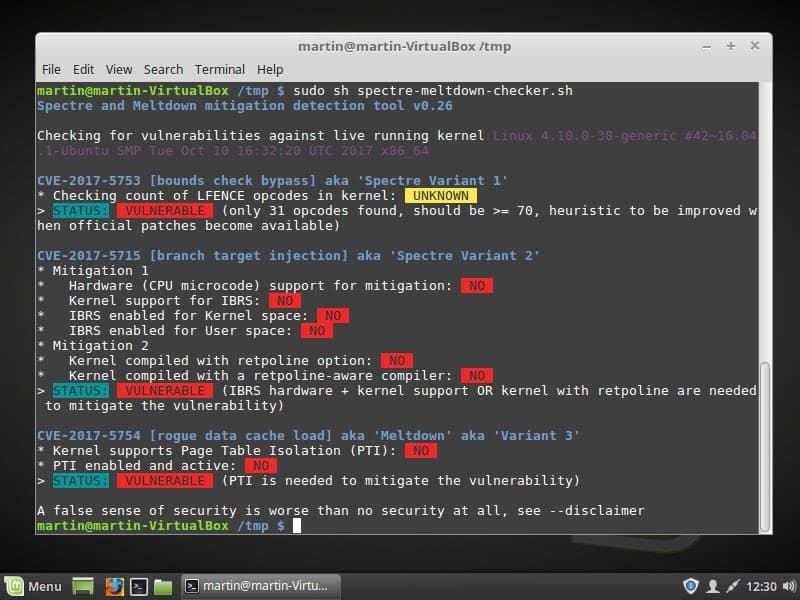
We talked about identifying whether your Windows PC or web browser is vulnerable already. A recently published script does the same for Linux systems. You may use it to check whether your Linux distribution is vulnerable.

Spectre and Meltdown detection for Linux

linux spectre meltdown checker

You run the script if you want to know whether a Linux distribution is vulnerable to Spectre variant 1 and 2, or Meltdown attacks.

Check it out on the official GitHub project page. You find the source there so that you may analyze it before you run it on a system.

You may run the script without parameters to check the running kernel or use options to check a kernel that is not used.

A simple shell script to tell if your Linux installation is vulnerable against the 3 “speculative execution” CVEs that were made public early 2018.

Without options, it’ll inspect you currently running kernel. You can also specify a kernel image on the command line, if you’d like to inspect a kernel you’re not running.

Here is how it works:

  • Open Terminal on the Linux system you want to check.
  • Type cd /tmp/
  • Type wget https://raw.githubusercontent.com/speed47/spectre-meltdown-checker/master/spectre-meltdown-checker.sh. This downloads the script from the GitHub server.
  • Type sudo sh spectre-meltdown-checker.sh. This runs the script with elevated privileges.
  • Type the password.

The script checks each variant individually and lists its finding. If you get “status: vulnerable,” the system is vulnerable to the variant. The checks for Spectre variant 2 and Meltdown reveal additional information.

A system that is vulnerable needs a kernel update to protect against potential attacks exploiting these vulnerabilities.

How you get the kernel update depends on the Linux distribution. You select Menu > Administration > Update Manager in Linux Mint to check for available updates. The kernel is not available yet, however.

Once you run the update, rerun the script to verify that the system is no longer vulnerable.

The Spectre & Meltdown Checker supports the scanning of offline kernels as well. Use the parameter −−kernel vmlinux_file for that and if available  −−config kernel_config and −−map kernel_map_file as well

Ghacks needs you. You can find out how to support us here or support the site directly by becoming a Patreon. Thank you for being a Ghacks reader.

The post Check Linux for Spectre or Meltdown vulnerability appeared first on gHacks Technology News.

Article note: Thanks a lot! Tomorrow I will give it a try …
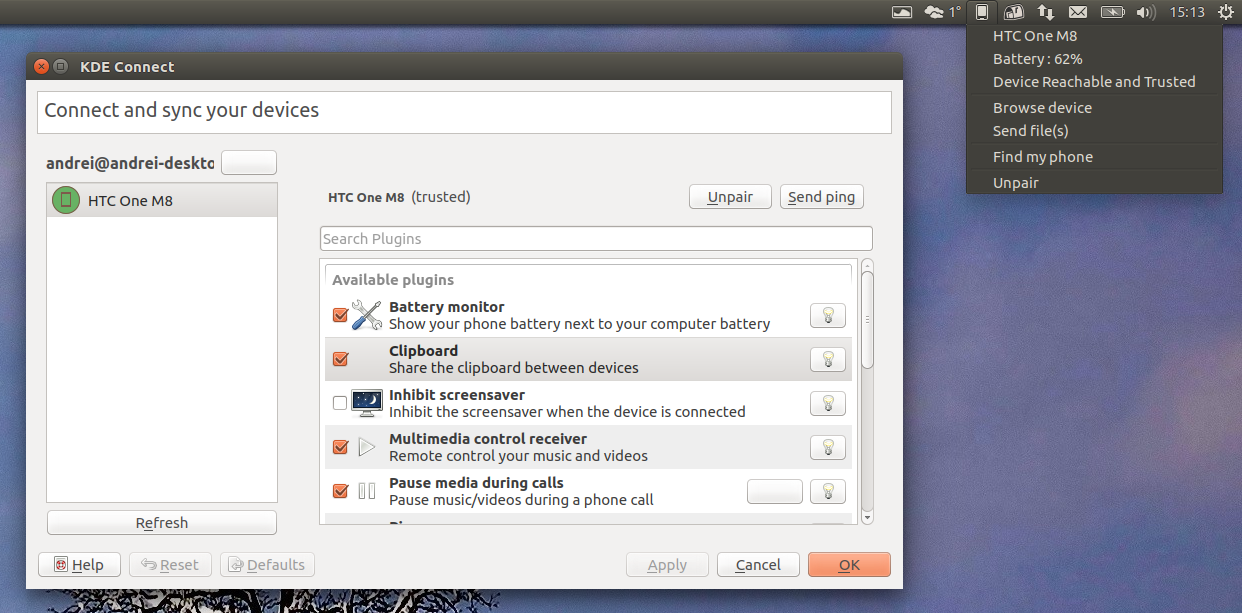
KDE Connect is a tool which allows your Android device to integrate with your Linux desktop. With KDE Connect Indicator, you can use KDE Connect on desktop that support AppIndicators, like Unity, Xfce (Xubuntu), and so on.

KDE Connect Indicator

The original KDE Connect Indicator hasn't been updated in about 2 year however, Steeven Lopes forked it, getting it to work with recent Ubuntu versions, while also adding various improvements:
  • support sending multiple files from the indicator;
  • new feature to find your phone;
  • new icons;
  • open KDE Connect settings from the indicator device status menu item;
  • added extensions for Nautilus, Caja and Nemo, which allow sending files from the file manager context menu;
  • bug fixes.
If you're not familiar with KDE Connect, here are some of its features:
  • display Android 4.3+ notifications on your desktop (I recommend Recent Notifications so you don't miss important notifications);
  • send and receive files (by default, the files are saved in ~/Downloads on the desktop and in the kdeconnect folder on the Android device);
  • share clipboard between your Android device and desktop;
  • allows using the Android device as a remote for Linux media players;
  • use your phone screen as your computer's touchpad;
  • uses TLS sockets encryption.

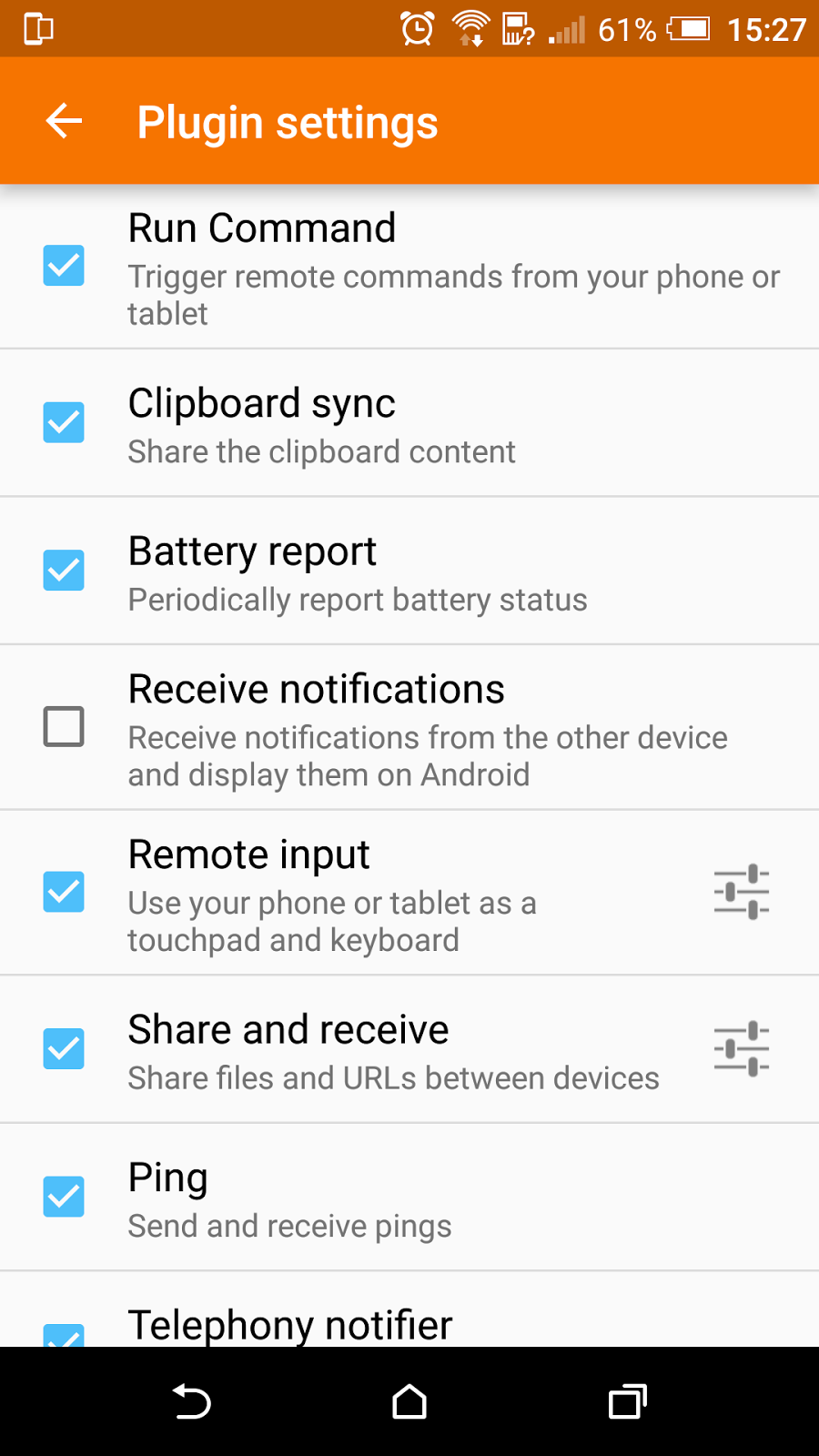
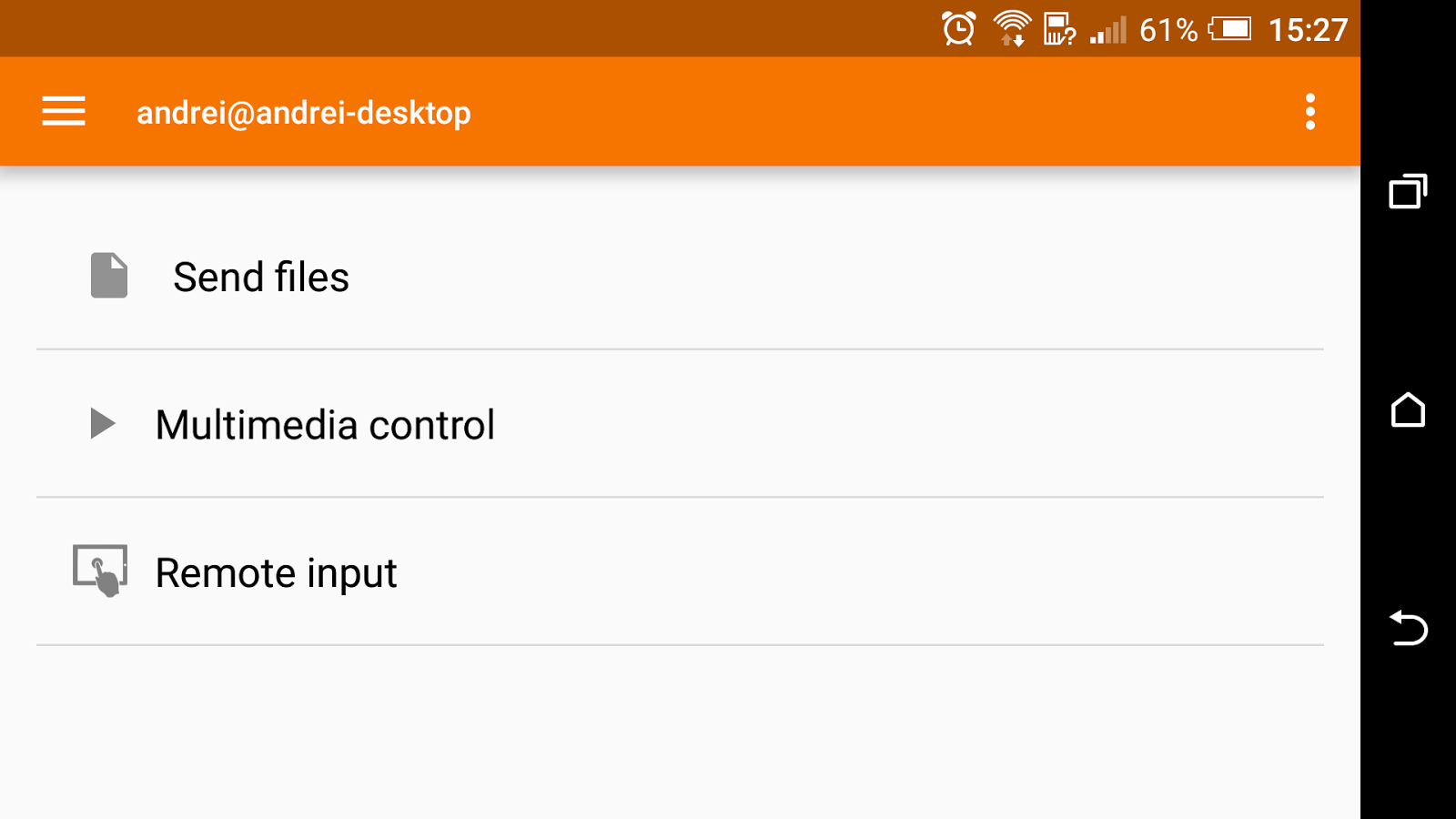
Here are a few screenshots of the KDE Connect Android app:


KDE Connect 1.0.x includes some new features, like triggering custom commands (you set this up on the desktop using the KDE Connect configuration, then launch them from the mobile device), displaying desktop notifications on the Android device (this plugin is disabled by default and you'll have to enable it on both the desktop and Android device to use it), and replying to SMS messages from the desktop. The SMS reply feature is not yet supported by KDE Connect Indicator.

The KDE Connect Indicator fork PPA only has packages for Ubuntu 16.04 (including KDEConnect 1.0, required by indicator). However, I've installed the packages in Ubuntu 16.10 and they installed successfully and everything worked, except browsing the device - but this didn't work in my Ubuntu 16.04 test either.

Sending and receiving files, displaying notifications on the desktop, shared clipboard, using the Android device to control media players or as the computer's touchpad, and so on, all worked in my test.

I should also mention that the indicator may disappear when the phone is in sleep mode, but it shows up again when you receive a notification or use your Android device.


Install KDE Connect Indicator fork in Ubuntu


Important: Before installing KDE Connect Indicator, it's important to mention that it depends on kdeconnect, a KDE package which will install quite a few KDE dependencies. If later on you want to remove KDE Connect and KDE Connect Indicator, you may want to save the list of packages which are installed by running the "apt install" command below, and manually remove those packages after you remove KDE Connect ("apt-get autoremove" won't work).

To be able to use KDE Connect Indicator, you'll need to install the KDE Connect application on your Android device.


Ubuntu 16.04: Steeven's KDE Connect Indicator fork is available in a PPA for Ubuntu 16.04. To add the PPA and install the indicator, use the following commands:
sudo add-apt-repository ppa:varlesh-l/indicator-kdeconnect
sudo apt update
sudo apt install indicator-kdeconnect kdeconnect

Ubuntu 16.10: There are currently no Ubuntu 16.10 packages in the PPA, but you can add the PPA in Ubuntu 16.10 and change it to use the Ubuntu 16.04 packages. To do this and install KDE Connect Indicator in Ubuntu 16.10, use the commands below:
sudo add-apt-repository ppa:varlesh-l/indicator-kdeconnect
sudo sed -i 's/yakkety/xenial/g' /etc/apt/sources.list.d/varlesh-l-ubuntu-indicator-kdeconnect-yakkety.list
sudo apt update
sudo apt install indicator-kdeconnect kdeconnect

Arch Linux users can install KDE Connect Indicator (git) via AUR (it uses the new fork).

Once installed, launch KDE Connect Indicator from the menu / dash. For pairing it with your Android device, see below.

Note: if you had an older version of KDEConnect installed before installing the version from the PPA, you may need to restart your system before KDE Connect Indicator works properly.

For source code, bug reports, see the KDE Connect Indicator fork GitHub page.

Pairing your Android device with KDE Connect Indicator


There are two ways you can pair KDE Connect Indicator with your Android device:
a) click "Request pairing" from the KDE Connect Indicator on your desktop, then accept the request from your phone;
b) select the desktop device from the KDE Connect application on your Android device, click "Request pairing, then on the desktop click "Request pairing" from the KDE Connect Indicator menu.

Thanks to Alex for the tip!

Article note: *niceidea!*

1. Sicherheitsrisiko Werbung Die Auslieferung von schadhafter Online-Werbung bzw. Malvertising wird zu einem immer größeren Problem und damit zum Risiko für den Nutzer. In meinem Kommentar »Adblocker sind digitale Selbstverteidigung« bin ich darauf bereits ausführlich eingegangen. Es ist daher wenig überraschend, dass Nutzer verstärkt auf AdBlocker wie bspw. uBlock Origin zurückgreifen. Doch diese Browser-Addons filtern […]

Old but not bus­ted … – Die­ser Inhalt wur­de vor mehr als 10 Jah­ren publi­ziert. Die Kor­rekt­heit und Ver­füg­bar­keit von Links kön­nen lei­der nicht gewähr­leis­tet werden.

Heu­te war nen ‚schö­ner‘ ver­bum­mel­ter Tag …

Geschichte

Ges­tern Abend kommt von einem Fami­li­en­mit­glied die Chat­nach­richt „mein Rech­ner geht nicht mehr“, auf die ich ant­wor­te „mal Strom für min­des­tens eine Minu­te tren­nen“. Am Ende hilft das (nat.) nix und wir ver­ab­re­de­ten uns für heu­te zu einem Telefonat.

Zu 10 Uhr dann das ers­te Tele­fo­nat und ich stel­le recht schnell fest, dass Remo­te-Sup­port ohne X und somit nur per Tele­fon echt ma nich geht. (Das Buch­sta­bie­ren von iwel­chen Kom­man­dos ist ganz schön mühsam …)
Her­aus gekom­men ist immer­hin, dass es sich um einen Log­in-Loop unter Ubun­tu 16.04 (ich war anfangs noch der Mei­nung, dass es noch ein von mir instal­lier­tes 14.04 ist) han­delt, wel­ches seit ca. letz­ten Frei­tag besteht.

Nach ner Stun­de habe ich die Faxen dicke und lei­der nicht mal ansatz­wei­se ne Idee außer, dass es iwas mit der recht alten NVIDIA GeForce 6800 GS in der Aldi-Mul­ti­me­dia­kis­te zu tun hat. In /var/log/Xorg.* und ~/.xsession-errors war so rich­tig nix zu finden.

Dann küm­mer­te ich mich erst ein­mal dar­um, wie ich remo­te auf den Desk­top per SSH zugrei­fen kann. Dazu war es dann nötig, auf der Fritz!Box (über die der ande­re Rech­ner an INet ange­bun­den ist) ne Port­wei­ter­lei­tung ein­zu­rich­ten und openssh-server auf dem zu repa­rie­ren­den Rech­ner zu instal­lie­ren. (Also wie­der ande­re Bau­stel­len …) – Das hat aber glück­li­cher­wei­se dann ganz gut geklappt.

Dann hat­te ich etwas Zeit (auch wenn ich neben­bei etwas Home­Of­fice machen ‚muss­te‘) zum umse­hen, Loop-Ursa­che loka­li­sie­ren und das Sys­tem noch etwas aufräumen.

Idee 1

Zuerst ver­such­te ich mein Glück mit dem Update des pro­prie­tä­ren Nvi­dia-Trei­bers aus dem Paket nvidia-$NR.
Ergeb­nis: Ohne Erfolg, da die (alte) GeForce nur bis zum Paket nvidia-304 unter­stütz wird. Also alles wie­der zurückgedreht …

aptitude purge ~nnvidia- && aptitude install nvidia-304

Idee 2

Dann dach­te ich mir, ich ver­zich­te ganz auf den pro­prie­tä­ren Kram und set­ze auf den (offe­nen) Nvi­dia-Trei­ber nouveau.
Ergeb­nis 2: Blöd nur dass der iwie nicht mit dem Moni­tor zusam­men­ar­bei­ten woll­te und ich nicht in der Lage war, eine annehm­ba­re (grö­ßer 640x480) Auf­lö­sung ein­zu­stel­len, obwohl ich (seit Ewig­kei­ten mal wie­der) ne kom­plet­te /etc/X11/xorg.conf hän­disch gebas­telt hab …
(Frü­her muss­te man alles hän­disch machen und Din­ge haben nur geklappt, wenn man die kor­rek­ten Para­me­ter hat­te. Heu­te wird extrem viel auto­ma­tisch gemacht und man kann oft gar nix mehr groß hän­disch ändern, wenn der Auto­ma­tis­mus ver­sagt. *grml*)

Zielgerade

Ich stieß dann (iwie in mei­nem 30sten Tab) auf den Foren­ein­trag „Anmel­dung auf gra­phi­scher Ober­flä­che nicht mög­lich“ im ubuntuusers.de-Forum. Eigent­lich nur, weil der recht aktu­ell ist. (Vie­le ande­re Recher­che­tref­fer waren schon ewig alt …)
Der dort ver­link­te Launch­pad-Bug #1634802 brach­te mich jedoch immer noch nicht auf die Ziel­ge­ra­de, jedoch auf eine Fähr­te. – Näm­lich den (auf Ask Ubun­tu ver­link­ten) Launch­pad-Bug #1639180, der in der Beschrei­bung auch mei­ne Feh­ler­mel­dung (die ich am Ende in /var/log/syslog fand) enthält:
X Error of failed request: BadValue (integer parameter out of range for operation).

Lösung

Letz­ten Don­ners­tag (3.11.16) – und da kom­men wir ärger­li­cher­wei­se wie­der zu Aus­gangs­si­tua­ti­on .oO(Hätte ich das mal ernst genom­men und in mei­ne Recher­che zu Beginn ein­ge­bun­den!) – wur­de die Ver­si­on „304.132–0ubuntu0.16.04.2“ ver­teilt. Die­se scheint (wie bspw. obi­ge Bugs ja auch zei­gen) eini­ge Unzu­läng­lich­kei­ten zu haben und ver­ur­sach­te auch auf mei­nem Pro­blem­sys­tem den Login-Loop.

Die vor­her­ge­hen­de Ver­si­on „304.131–0ubuntu3“ lief (und läuft) ohne die­se Pro­ble­me. – Ergo habe ich ein Down­gra­de durchgeführt.

Dazu also wie­der alle instal­lier­ten Nvi­dia-Pake­te deinstallieren:

aptitude purge ~nnvidia- && aptitude install nvidia-304

Dann die „304.131–0ubuntu3“ installieren:

apt-get install nvidia-304=304.131-0ubuntu3

Am Ende noch (da das Sys­tem ja nicht täg­lich unter mei­ner Kon­trol­le ist) die „304.131–0ubuntu3“ in der (neu­en) Datei /etc/apt/preferences.d/nvidia-304 (mit fol­gen­den Inhalt) gepinnt (s. Apt-Pin­ning)

Package: nvidia-304
Pin: version 304.131-0ubuntu3
Pin-Priority: 1001

Und nach nem Reboot war der Log­in-Loop weg … 🙂 *fertsch*

Dan­ke an die Com­mu­ni­ty, ohne die in der ja doch recht kur­zer Zeit (von letz­tem Don­ners­tag bis heu­te) eine Lösung nicht in mei­nen eige­nen Kräf­ten gewe­sen wäre!