Article note: Und den sch*** Turm bekommen sie somit?! #grrr

Syncthing-Fork - A Syncthing Wrapper for Android. F-Droid release channel. DO NOT USE except for builds. Refer to https://github.com/Catfriend1/syn…
Java 52 Updated Jan 16
Syncthing-Fork - A Syncthing Wrapper for Android.
Java 415 Updated Jan 16
This month on The Queue, josephj from LinuxQuestions.org asks:
How can I get programmers to join our project?I inherited a project coded in $programming_language when the original developer quit and no one else stepped forward. It is currently hosted on GitHub and has a GPL 3 license.
It's a tool I use every day and I don't want to see it die. I know very little $programming_language and very little GUI programming, so I can't maintain it myself.
How do I go about finding one or more programmers who actually have some time to help out?
I found two or three programmers in the past, but, despite the best intentions, no one has stayed long enough to get a lot done.
This is a question I hear asked quite a bit, so thank you for submitting it to The Queue. As programmers are both in intensely high demand and often have quite a few side projects themselves, getting them to participate in your project can be a challenge. The first suggestion I have for you is to set realistic expectations for participation. Unless you find another programmer who takes a deep interest in the project or desperately needs it for work, it's highly unlikely you'll be able to get someone to just step in as a maintainer. The time, dedication, and responsibility involved in being a maintainer should not be underestimated. That said, here are a few things you can do to ensure people who find your project and are interested in participating have a solid path to becoming regular contributors.
It's critical that your project clearly outline:
These items seem simple and, for someone who has been involved with the project for a while, forgetting that this information may not be obvious to others can be easy. Many projects, especially smaller ones, get overlooked as a result of this information being missing, impossible to find, or difficult to understand. You're using GitHub, so the README.md file is the place for this information. (Outside GitHub a README file serves the same basic purpose.) The information included should be concise, but lengthy enough to clearly articulate the information you feel is important about the project.
You should also create a CONTRIBUTING file (or CONTRIBUTING.md file if you're using Markdown on GitHub) that contains information about actually participating in your project. This is the place for simple step-by-step instructions on cloning, detailed instructions on how the code should be built, any coding standards or formatting standards you may have, information on testing, the process for submitting patches, your pull request and review process, and any other information considered essential for contributing. GitHub puts it well: From a maintainer's point of view, the document succinctly communicates how best to collaborate. And for a contributor, one quick check of this file verifies their submission follows the maintainer's guidelines.
One of the most difficult decisions a new potential contributor likely will have is finding where to start their participation. Telling them to jump right into the issue tracker may be easy, but having a list of small, well-defined tasks can substantially reduce the friction in getting new contributions.
Have a call to action. Tasks such as minor UI issues, translations, and small simple fixes will encourage people to take the time to get familiar with your codebase to see whether participating is a good fit for them (and for you). Once someone has taken the time to delve into your code, taking the next step to submit a minor patch doesn't seem like such a large one. A few patches later and that person may be both willing and able to take on a larger task, such as a more substantial feature request. From there it's possible they will become a long term committer.
Programmers tend to participate in projects that interest them for one reason or other. Another prerequisite for continued participation is working on a codebase that makes sense to them. Writing well-structured code that has quality documentation will help others get up to speed more rapidly and will ensure you don't lose too many contributors in the "getting familiar with your codebase" portion of the process.
Especially for smaller projects, letting patches slip through the cracks can be easy. For new contributors, getting no response, even if it was due to a busy schedule and not poor code quality, is unlikely to lead to further participation. Additionally, although not all contributed code is going to be of acceptable quality, how you reject code in many ways sets the tone for the enter project. Having current contributors who are willing and able to identify and mentor potential contributors in a constructive way is critical here. Snarky hostile responses aren't going to result in higher quality code from a potential contributor, but rather in them contributing to a different project.
With fantastic tools such as GitHub available, it's easy to forget that potential contributors can be found elsewhere as well. Conferences, local user meet ups, and other meatspace options can be terrific resources here and should not be forgotten or overlooked.
The reality is that getting contributors for a new or small open source project isn't easy. Making sure you get the fundamentals correct is critical though. Having clear guidelines on how to participate, easy tasks to get started with, and a welcoming constructive feedback loop will foster the contributions you do get and will help ensure you get consistent sustainable contributors.

Syncthing is a P2P (peer to peer) network that allows you to keep your files synchronised.
Syncthing aims to replace services such as: Dropbox, Google Drive and OneDrive. By putting the user in control of their own data. Syncthing enables the user to set up multiple 'nodes' which can communicate with eachother.
A node can be, your personal computer, a work machine, a machine in another location or even a central server.
Syncthing will encrypt all data when it is being transported to your other nodes. Nodes don't just have to be on your local network, you can sync between nodes over the internet. Encrypted, of-course.
I use Syncthing as my storage solution. I have a 'central' Syncthing server which lives in my loft. I quoted 'central' as the loft server is just a node, there's nothing special about it other than having a backup cron job running on it.
I then have multiple other nodes, such as: my main laptop, a work machine and even my Android phone. I have spoken about Syncthing on Android in my My Self Hosted Note Syncing Journey Once Switching to Iphone post.
With the multiple nodes set up, I can choose folders that can sync. I'm currently writing this blog post on my personal laptop, which is syncing to my blog server as I type (well, hit save).
You can then specify which nodes, the folder you created, to be shared with. So in my case, I am sharing my blog with my personal laptop and my 'central' server, just to backup my data.
I'm going to show you how to set up Syncthing in the context of my setup. So having that 'central' server. You could use a cheap Raspberry PI to set up your 'central' server.
My 'central' server is running Ubuntu Server, so the following instructions are tailored for Debian distros.
Firstly, you need to install the correct package locations in order to download Syncthing correctly.
sudo apt-get install curl apt-transport-https
curl -s https://syncthing.net/release-key.txt | sudo apt-key add -
echo "deb https://apt.syncthing.net/ syncthing stable" | sudo tee /etc/apt/sources.list.d/syncthing.list
Next, update your local repository with the new Syncthing repository
sudo apt-get update
sudo apt-get upgrade
sudo apt-get install syncthing
The next thing you want to do is enable Syncthing as a system service. This will allow start-up on boot and continuous execution in the background of your server.
sudo systemctl enable [email protected]
sudo systemctl start [email protected]
So this will start Syncthing on your Ubuntu Server. Problem is, Ubuntu Server is usually headless. So at the moment there is no way to access the Syncthing GUI to configure your folders and nodes.
The way we can change this to allow local access from another machine is to change the serve address.
When you ran the Syncthing command above, a syncthing folder was created under your /home/username/.config folder.
Inside that will be a config.xml file.
Open this with a text editor, something like Vim or Nano. It really doesn't matter.
Within config.xml there is a section that looks like this:
...
<gui enabled="true" tls="false" debugging="false">
    <address>127.0.0.1:8384</address>
    <apikey>...</apikey>
    <theme>default</theme>
</gui>
...
Under the address attribute, you need to update the ip address.0.0.0.0 will allow all machines on your local network to be able to access the Syncthing GUI.
...
<gui enabled="true" tls="false" debugging="false">
    <address>0.0.0.0:8384</address>
    <apikey>...</apikey>
    <theme>default</theme>
</gui>
...
Save and close config.xml and then restart Syncthing by running the following command.
sudo systemctl restart [email protected]
For Syncthing to work, you need to set up another Syncthing node. Simply follow the above steps again on another machine, or jump to the bottom of this page quickly and install Syncthing on Windows or Android
Now with all that running, you should be able to access the Syncthing GUI by navigating to:
http://{your_server_ip}:8384
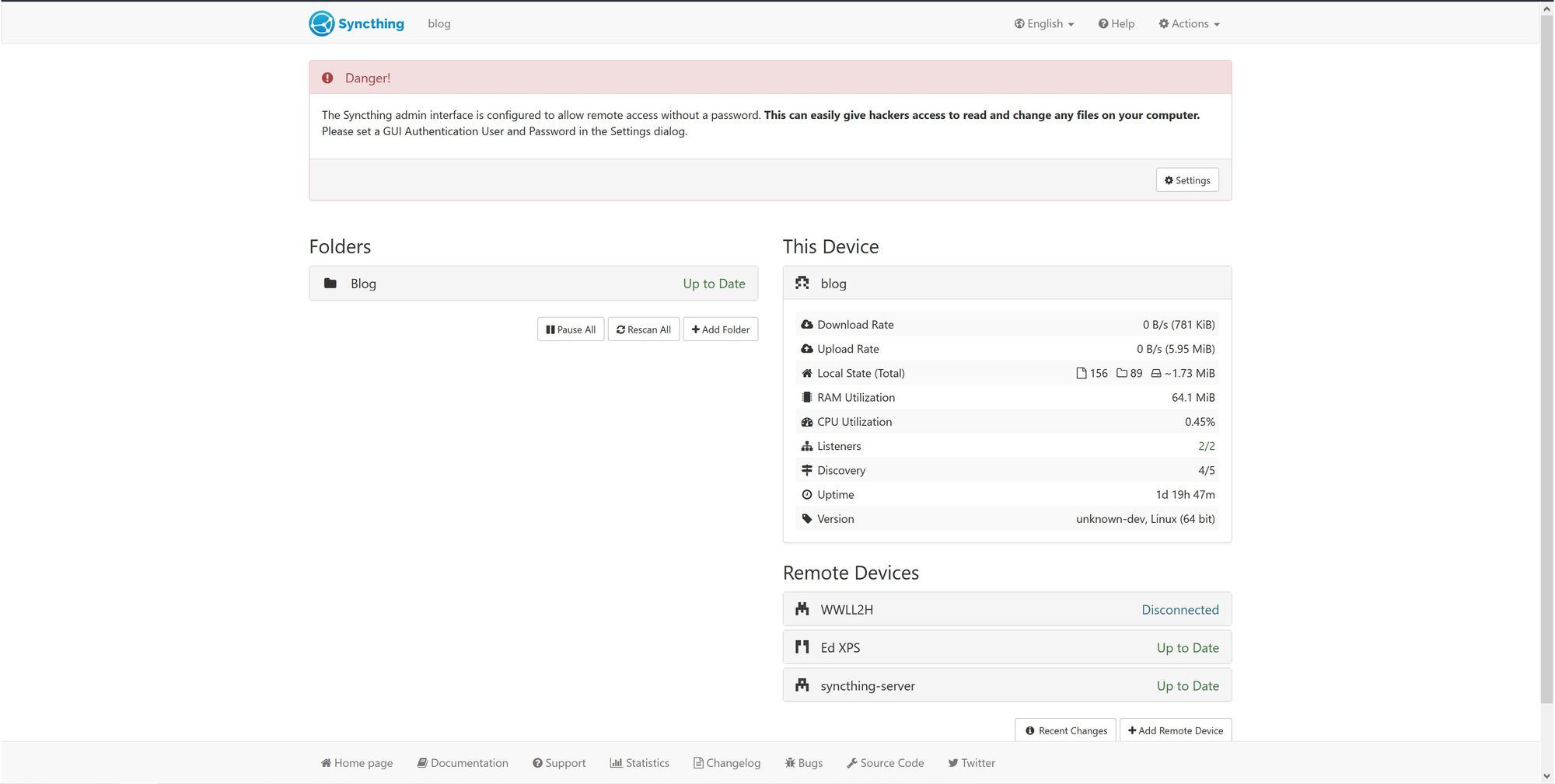
Once entering your ip-address or hostname, you should be presented with something that looks like this
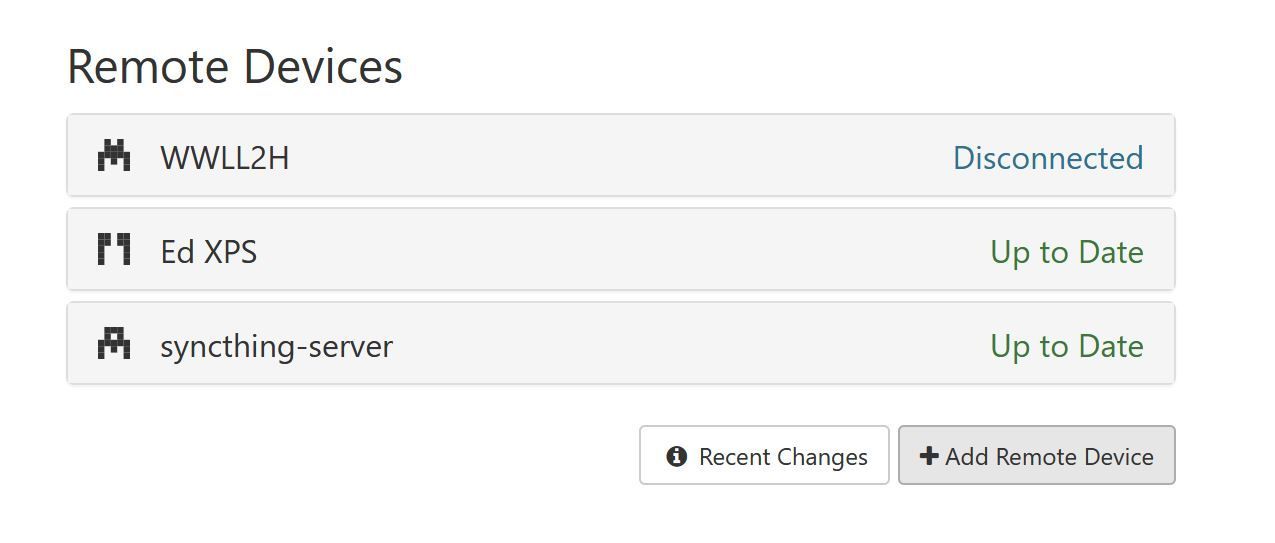
To add a new Device, select the Add Remote Device button, which will open up a new popup window.
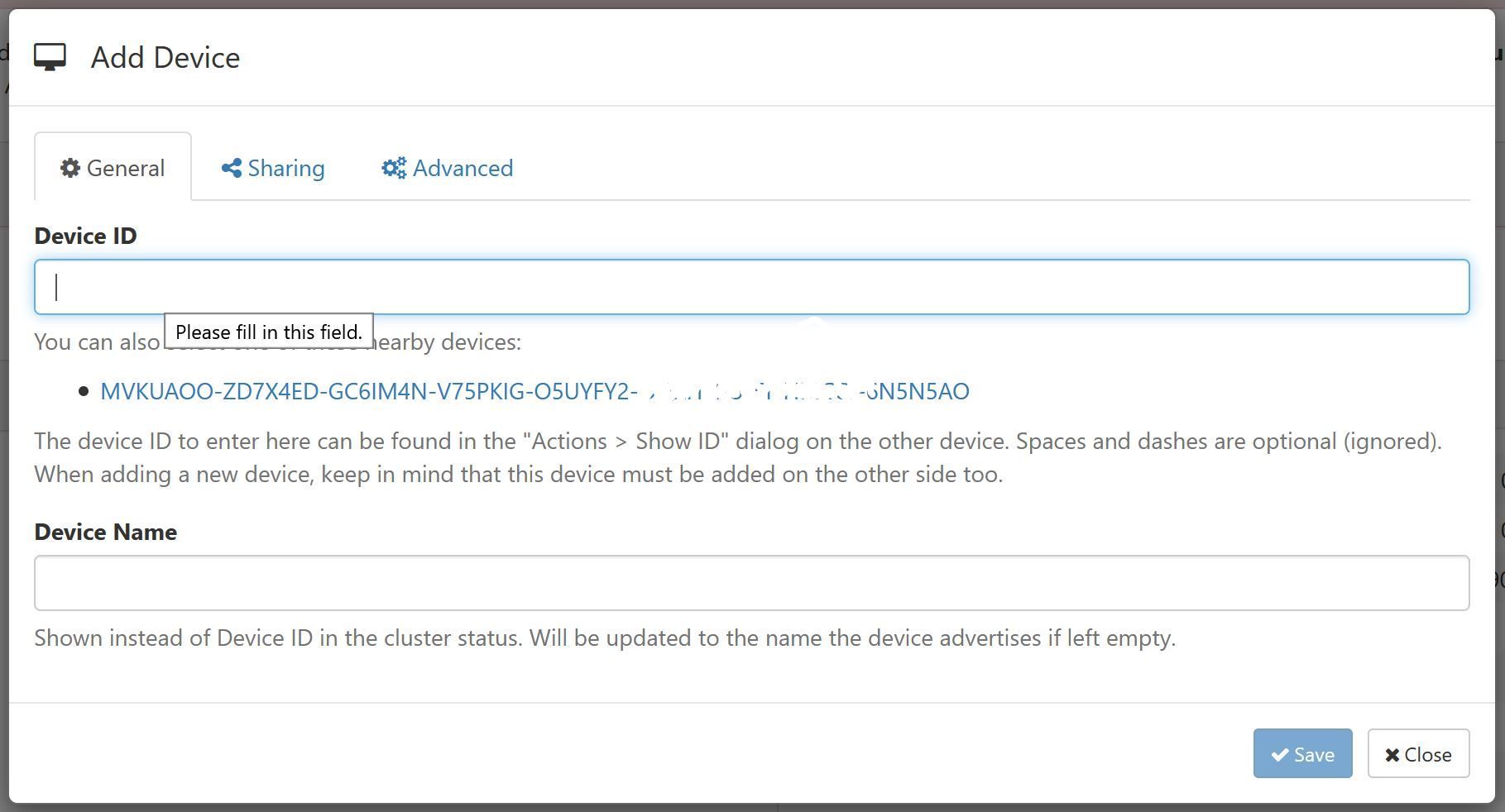
The Add Device window will pop up. You may notice that there is an existing ID which is available to click.
Syncthing automatically polls your local network looking for existing nodes, depending on how your other nodes are set up, you may or may not see this.
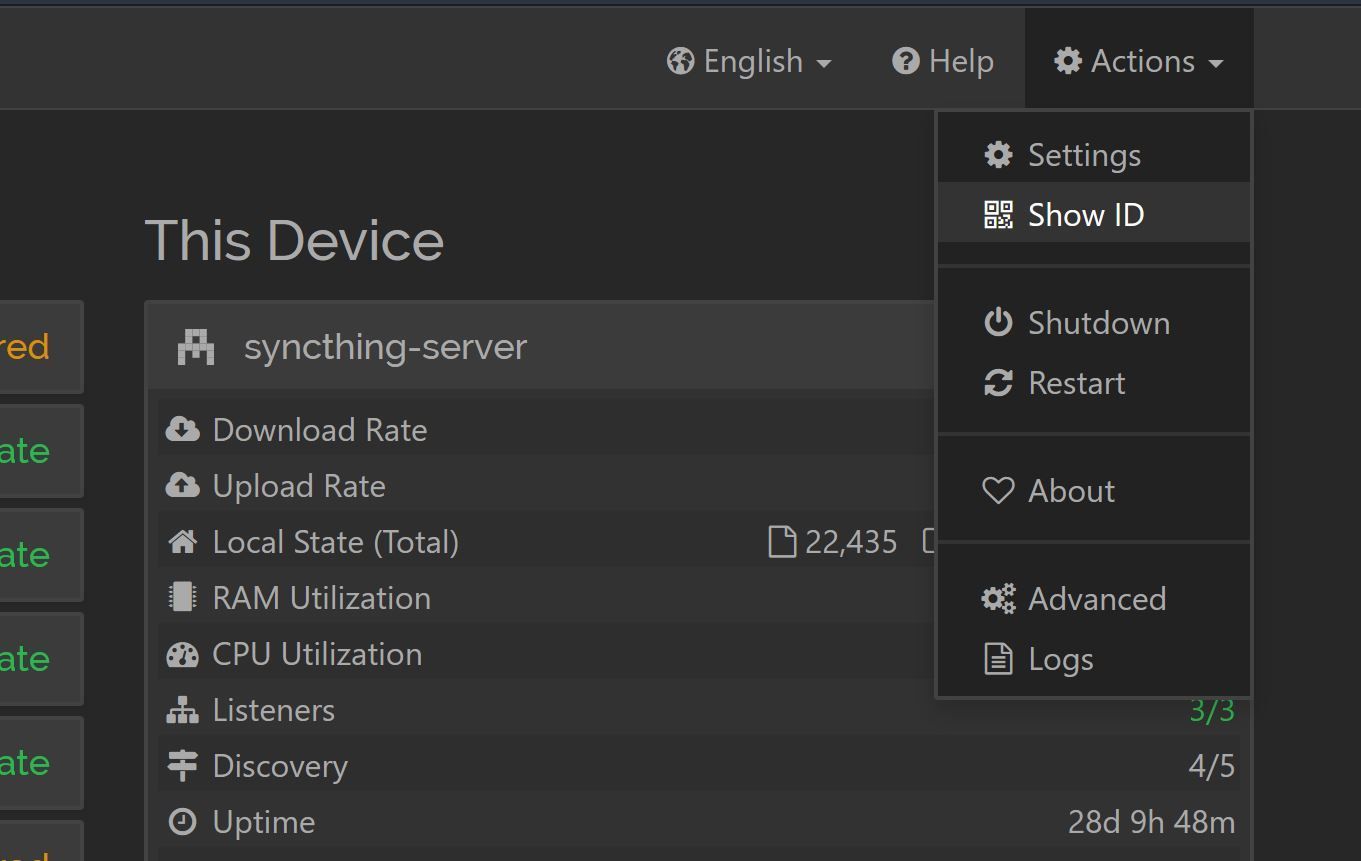
If you don't see the ID, simply navigate to your other Syncthing node (let's call it Syncthing B), select Actions > Show ID from the top right menu.
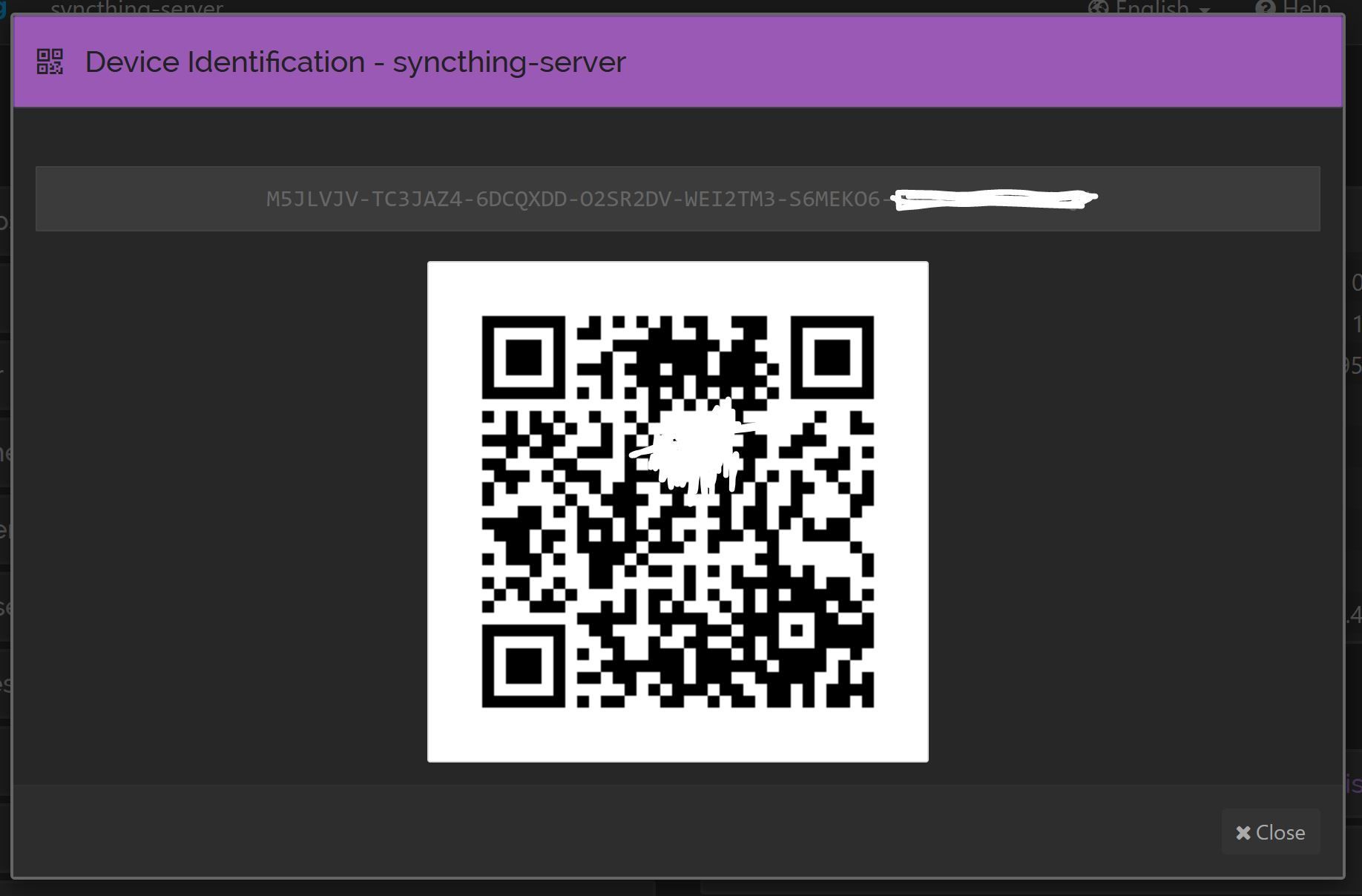
Here you will see the Syncthing B Syncthing ID. Copy this ID or use the QR code to scan the ID. And paste the ID into the Device ID field back on the Syncthing A node.
Complicated at first, but once you get the hang of Syncthing, it'll be easier.
Click Save on that window and it'll add Syncthing B as a new device.
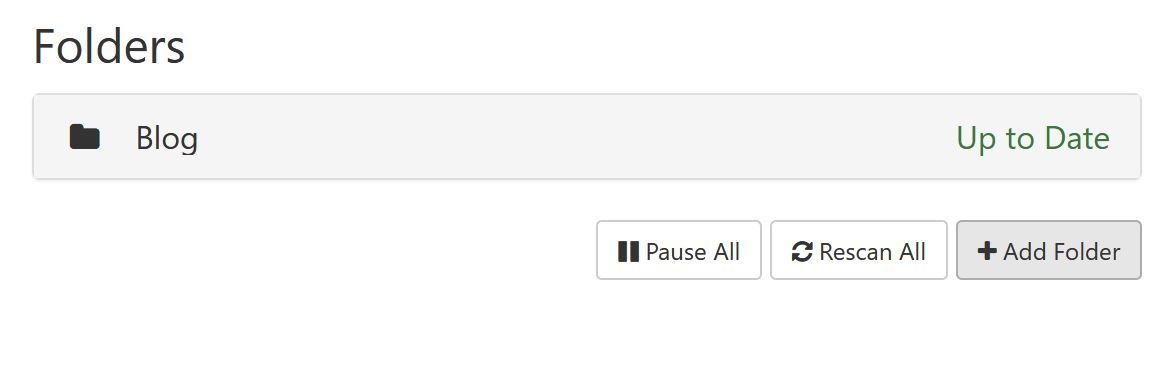
Now, on Syncthing A click the Add Folder button on the left hand side of the screen. This will pop up with a new window.
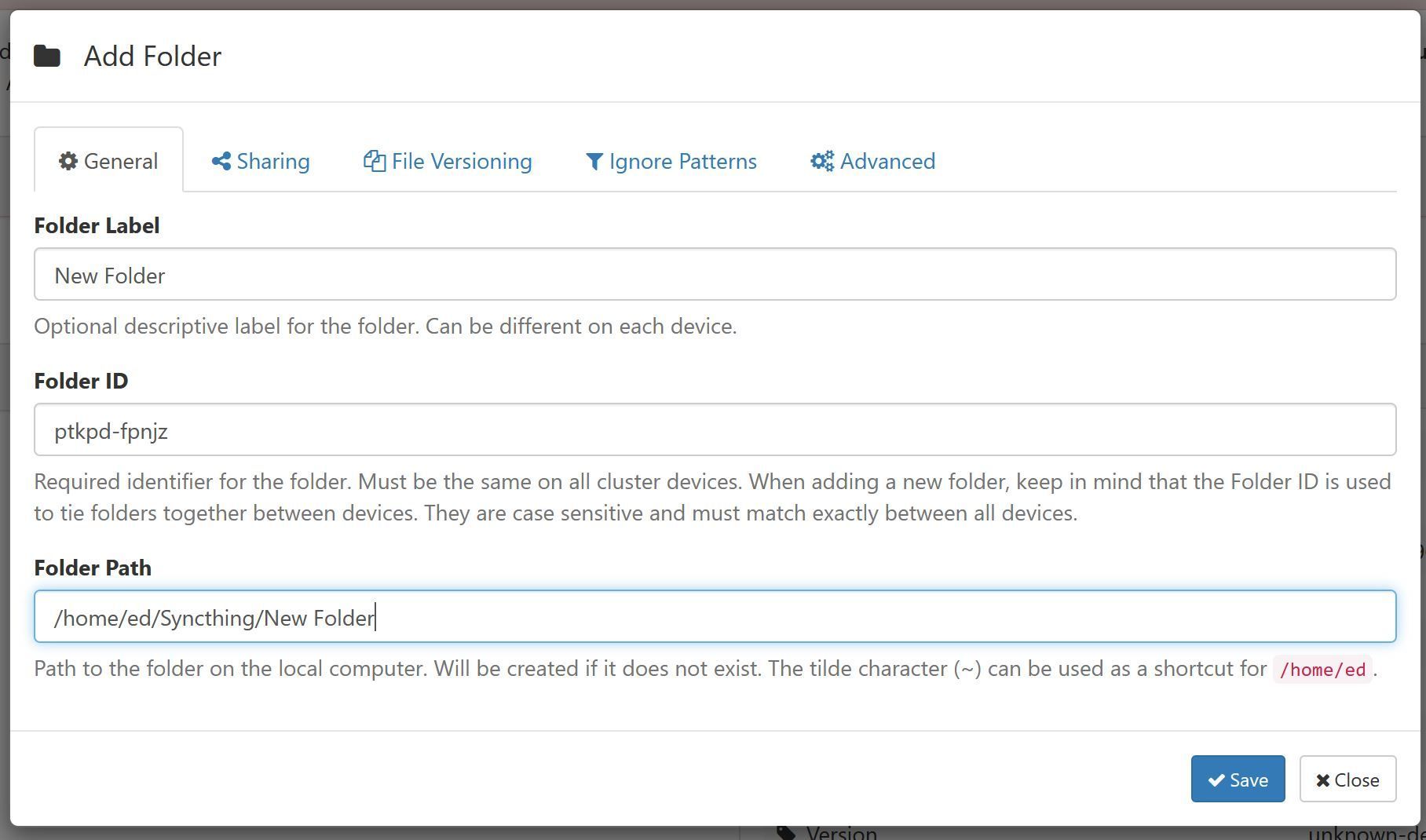
Give your new folder a name and change the path to be relative to the folder on your machine that you want to backup. I tend to keep all of my synced folders under /home/ed/Syncthing just so that I know where everything is.
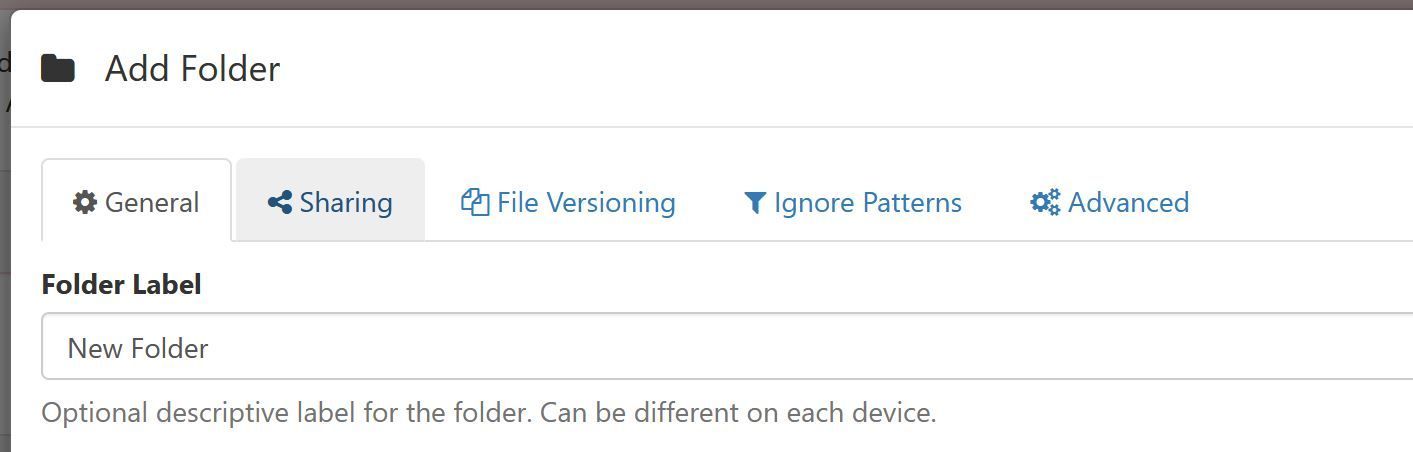
Navigate to the Sharing Tab
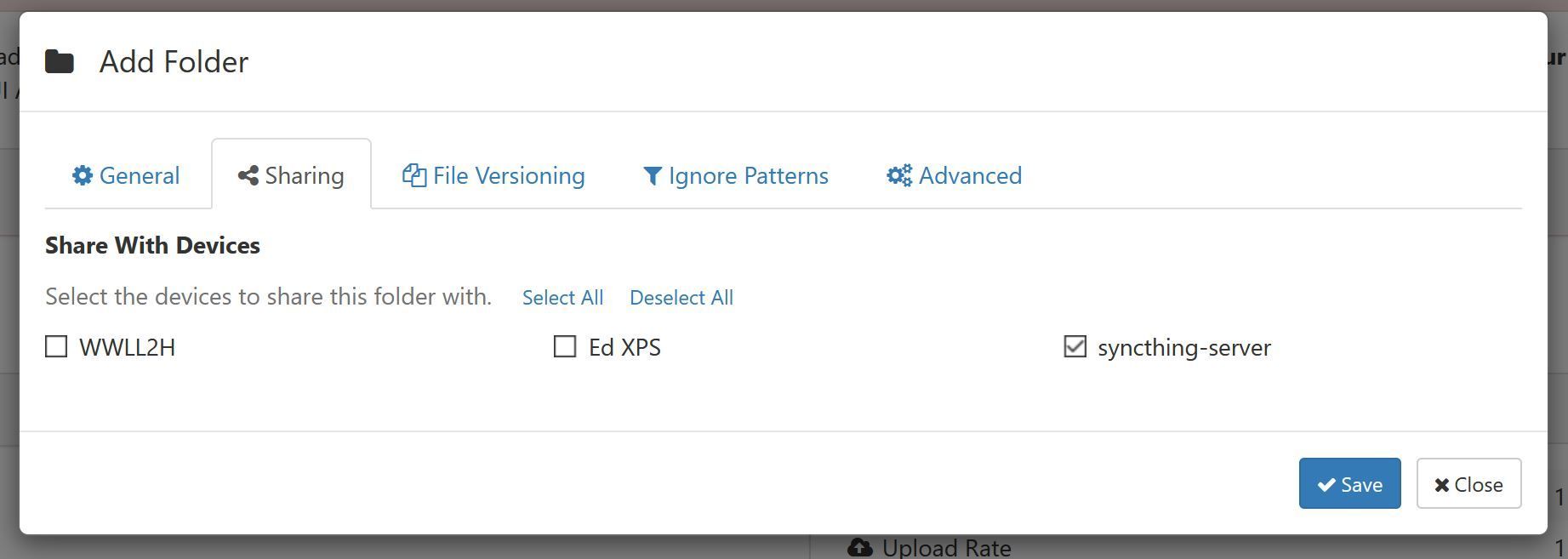
Here are the devices you have added. I have a couple more than you probably will just because this is my existing system. Simply select the device that you added and click Save
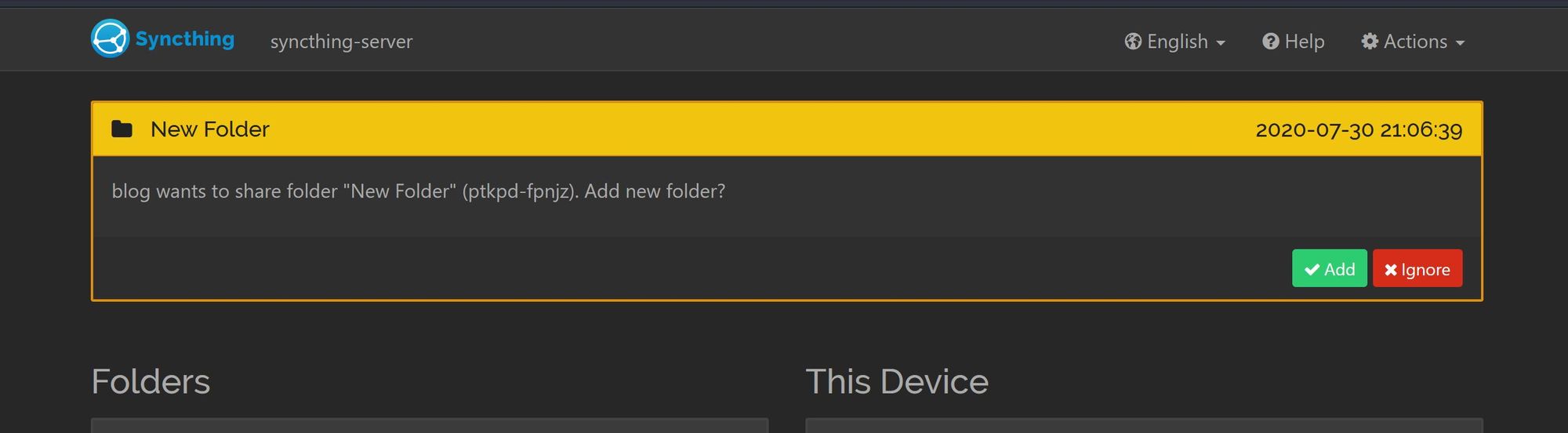
Next, on Syncthing B, there will be a new call-to-action at the top of the page. This is a request for you to allow Syncthing A to add Syncthing B as a device. Simply click Add.
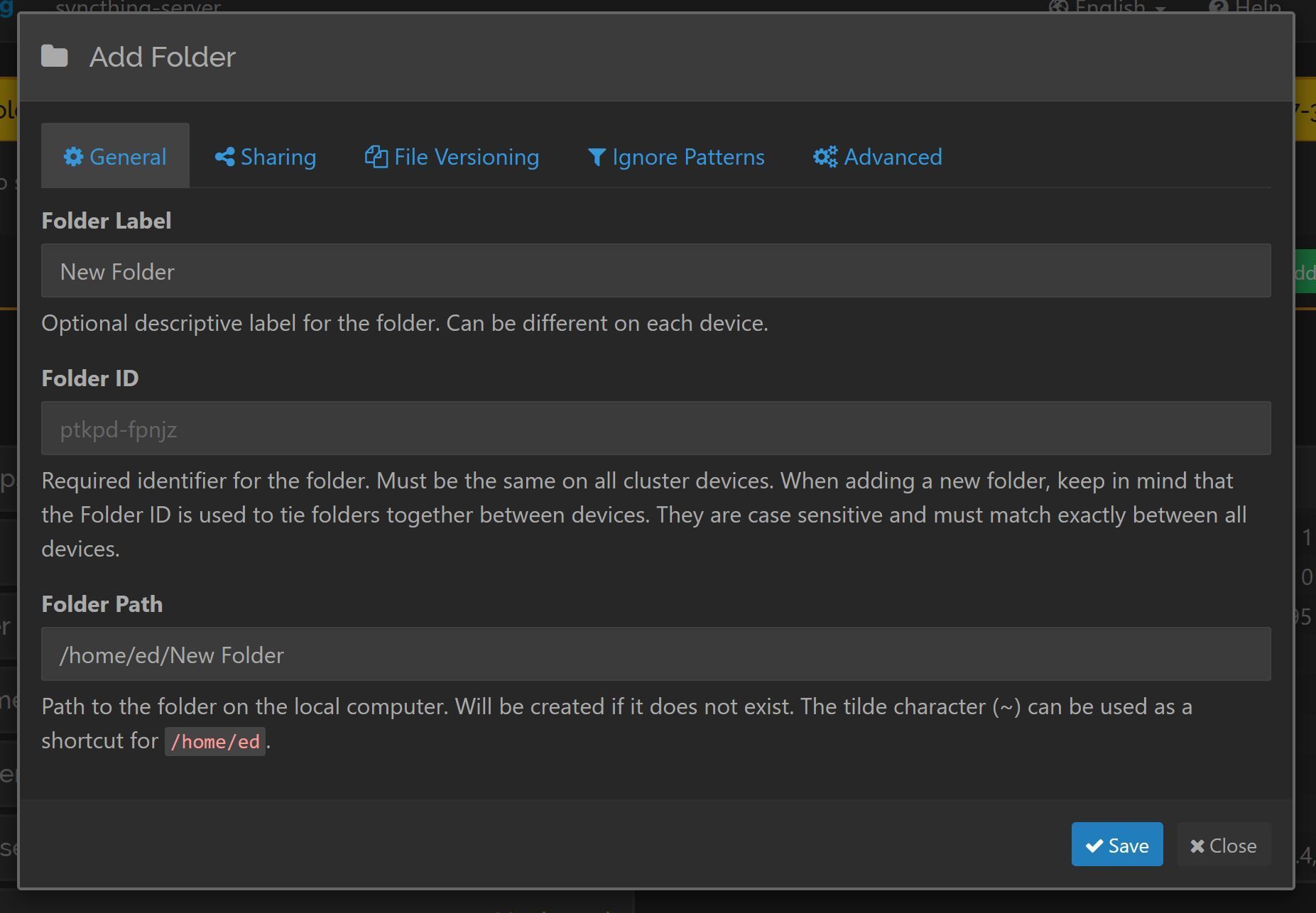
Then, shortly after accepting the new device, you'll get another popup which is Syncthing A requesting to share the folder you have just create.
Click Add
Finally, you now need to choose a location for this folder to sync to.
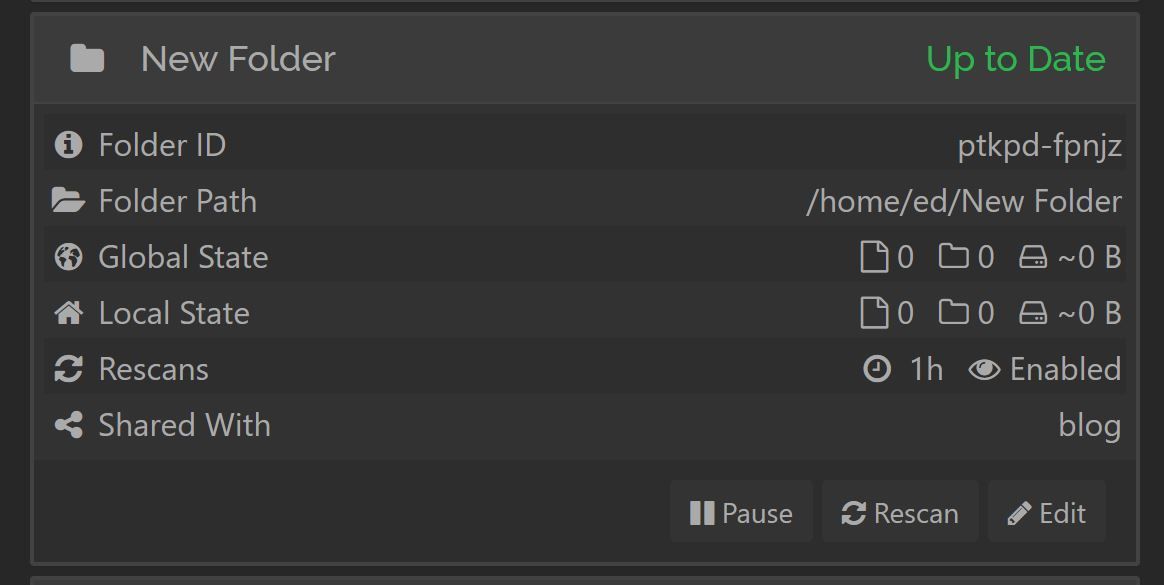
Click Save and that's it.
Feel free to test by adding a file to the Syncthing A folder and wait for the global state to change on Syncthing B
Syncthing works on everything apart from iPhone. There are whispers of something coming to iOS in the future, but not right now.
Setting up a node on another Linux machine is as simple as just copying the steps above. If the machine isn't headless, such as a desktop machine, you can ignore the part about changing the ip address in the config.xml
Setting up on Windows is relativley easy. You can either go the manual route of downloading the Syncthing exe. Or by opting for the simple solution which is installing SyncTrayzor which adds a system tray icon and runs Syncthing in the backgroud automatically.
Syncthing has apps in the Play Store and F-Droid which can be downloaded and installed.
Let me know if this has helped in the comments below.
Also, feel free to check out my other blog posts here
This post contains affiliate links, meaning we may receive a small commission on purchases made through links in this post. At no extra cost to you 😊We hate Ads! They don't respect your privacy.
Would you consider supporting us on buy me a coffee? Your support really helps to keep the costs down with running the blog
Subscribe to our free Monthly Newsletter, featuring our latest posts. Straight to your inbox. No spam ever (we hate it as much as you do).